Step-1 Open Tableau Desktop.
Step-2 Create Data source for Sample POC Excel as per below.

Step-3 Connect Data-source with above Excel file.
Step-4
1. Drag “Candy Type” field dimension into Columns shelf
2. Drag “SUM(Sales)“ filed measure into Rows shelf
3. Drag “SUM(Sales)“ filed measure into Rows shelf
4. Right click on X-Axis and Click on Synchronize Axis
5. Right Click on “SUM(Sales)” in filed measure and click on Dual Axis.
Step-5
Go to “SUM(Sales)” Mark Shelf and Select Bar.
Step-6
Go to “SUM(Sales)” Mark Shelf and Select shape as per your preference.
Step-7 Drag “Candy Type” field dimension into Shape.
Step-8 Add All Shape in Below Path and Reload Shapes and Assign Palette based on Symbol.

Step-9
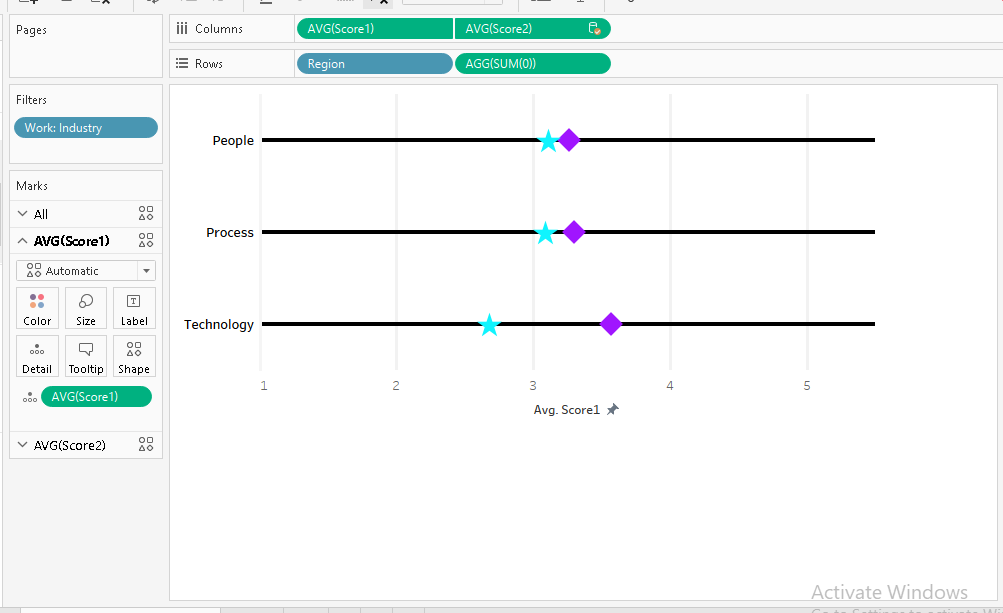
Please look below image for reference.

 Business intelligence