Sentimental Analysis With Tableau and Python

What is Sentimental Analysis ?

Sentiment Analysis is the method of analysis to determine whether a piece of information is positive, negative or neutral.

Step-1 Connectivity between Python and Tableau

  • Install Anaconda software for your respective environment
  • Open Anaconda Navigator & install Tabpy-Server & Tabpy-Client packages
  • Go to respective location  where your Tabpy packages installed  For Example C:\Users\..\Anaconda3\Lib\site-packages\tabpy_server to run startup.bat file

Default port will listen on 9004

For more detail to integration between Tableau and Python . Please read blog http://www.bituskers.com/python-integration-with-tableau/

Step-2 Now Open Tableau Software and Click on Help -> Setting and Performance ->  Manage External Service Connection.

Click on “Test Connection” button to  check service between Python & Tableau. If successful message prompt then we have done connectivity successfully.

What is Vader Sentimental Analysis?

Vader is a lexicon and rule-based sentiment analysis tool that is specifically attuned to sentiments expressed in social media.

Step-3 Do install package “vaderSentiment” in Python Environment. Below is command.

pip install vaderSentiment

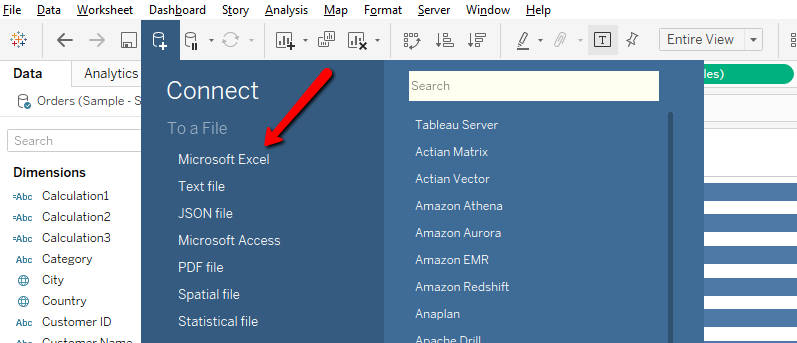
Step-4 Open Tableau Software and Connect respected data source. for example “Microsoft Excel”. After connected to datasource follow below step.

Step-5 Create calculation field in Tableau and give it name “Sentimental”

Create another calculation field to give it name “Color”. To check whether review is Positive, Neutral or Negative based on condition.

Step-6 Put the dimension and calculation fields in Column and Row Shelf as well in Mark shelf as per below screenshot.

Dashboard Button navigation – Tableau

Objective : To do navigation to sheet or dashboard we can use Dashboard “Button” object

Step-1 Connect data source

Step-2 Create Dashboards to navigate between dashboards

Step-3 Drag “Button” object to Dashboard

Step-4 After drag “Button” object to dashboard ,click on “Button” object pill and click on “Edit Button” as per below screenshot.

Step-5 After click on “Edit Button” , you can see below window with various options.

  • Navigate to – You can select Dashboard Name Or Sheet
  • Button Style – You can select Image Button Or Text Button
  • Image – You can set Image
  • Format – You can set Border and Background
  • Tooltip – You can set tooltip on button

After set all options click on “Apply” then “OK” button

Step-6 After set above options ,Click on “Button” object now you can navigate to respected dashboard which you selected from option “Navigate to”

Viz on Tooltip

Step-1 Connect data source

Step-2 Create sample chart.

Step-3 Go to chart where you want to show viz on tool-tip , Click on “Tool-tip” button then you will see window like below screenshot ,Click on “Insert” Pill and select the sheet which you want to show on tool-tip . You can also set height, width and filter of the sheet as per your requirement.

Step-4 After follow above step ,you can see viz on tool-tip

Rounded Bar Chart – Tableau

Step – 1 Open Tableau Desktop and click on New Data source icon to connect data source , for example (Sample Superstore)

Step – 2 Drag Dimension “Sub Category” into rows shelf

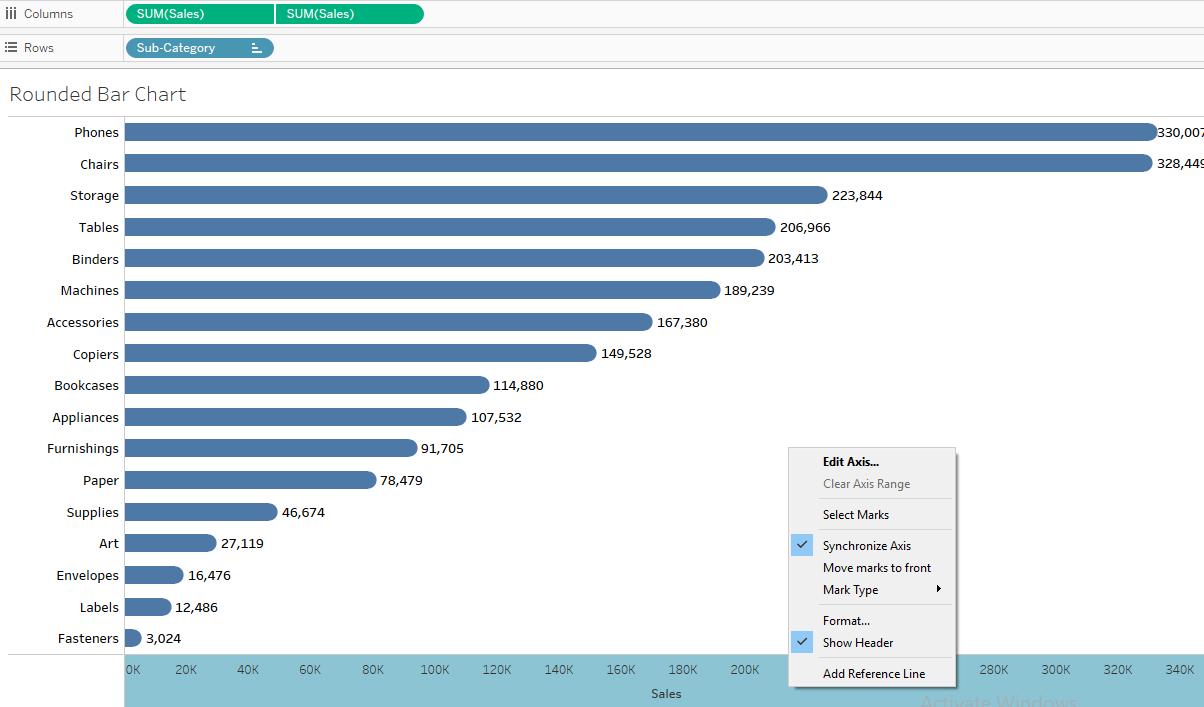
Step – 3 Drag “Sales” measure into Column Shelf , Hold the control button select “Sales” measure drag again into Column shelf.

Step – 4 Click on measure “Sales” and do dual axis between two measure. please look below image for reference.

Steps – 5 Make synchronize axis between two measure.

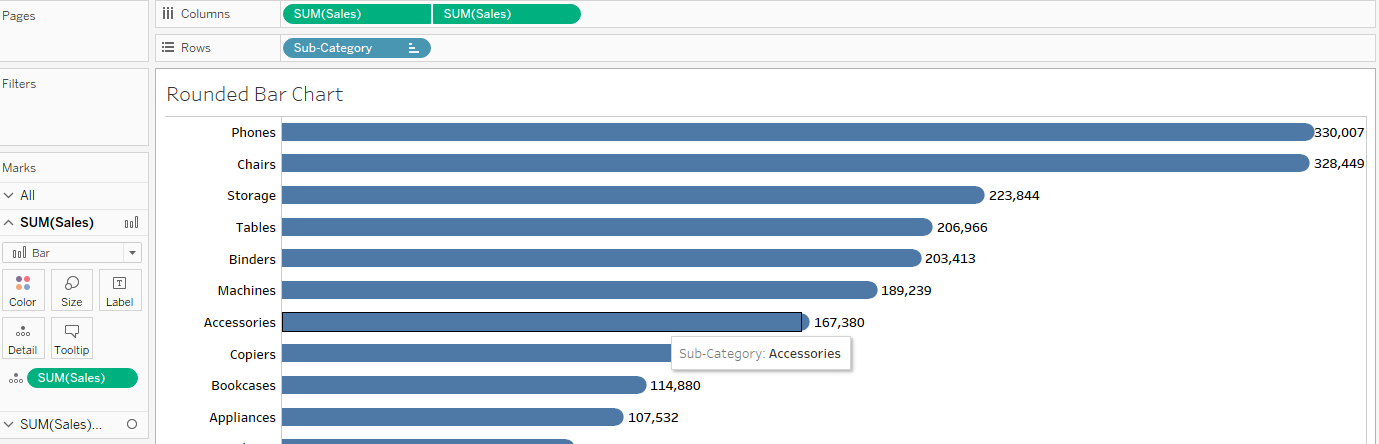
Step – 6 Select Bar shape type for first measure from Mark shelf

Step – 7 Select Circle shape type for second measure from Mark shelf

Funnel Chart – Tableau

Objective to create , A Funnel chart is a type of chart, often used to represent stages in a for example sales process

Step – 1 Open Tableau desktop , and connect to data source for example (Sample Super Store)

Step – 2 Drag Dimension “Subcategory” into rows shelf

Step – 3 Create Calculation for “Sales” filed

Step – 4 Drag “Sales” Calculated filed into Columns shelf

Step – 5 Drag “Sales” measure columns shelf

Step – 6 Make a dual axis between two measure “Calculated Field (Sales) “Sales”

Step – 7 Click on measure “Sales” then select “Show Header” option from columns shelf and then Do synchronize axis as per below screenshot

Please look below reference images to set Tool tip and Label from Mark shelf

Shape Chart – Tableau

To create shape chart . Here Shape size will increase as per their weight.

Before follow below steps please upload image into following path for example : C:\Users\User Name\Documents\My Tableau Repository\Shapes

Step-1 Open Tableau Desktop

Step-2 Connect Data-source Example like – Sample Super Store

Step-3 Drag “Region” field dimension into column shelf

Step-4 Go to Mark Shelf -> Shape -> Select shape as per your preference.

Step-5 Drag “Profit” filed measure into Mark -> Size & “Profit” filed measure into Mark-> Label

Please look below image for reference