Note: Below all steps only for Window Operating System
Step 1: Install “Anaconda3-4.2.0-Windows-x86_64” Setup and also you can download setup from below link. https://www.anaconda.com/distribution/
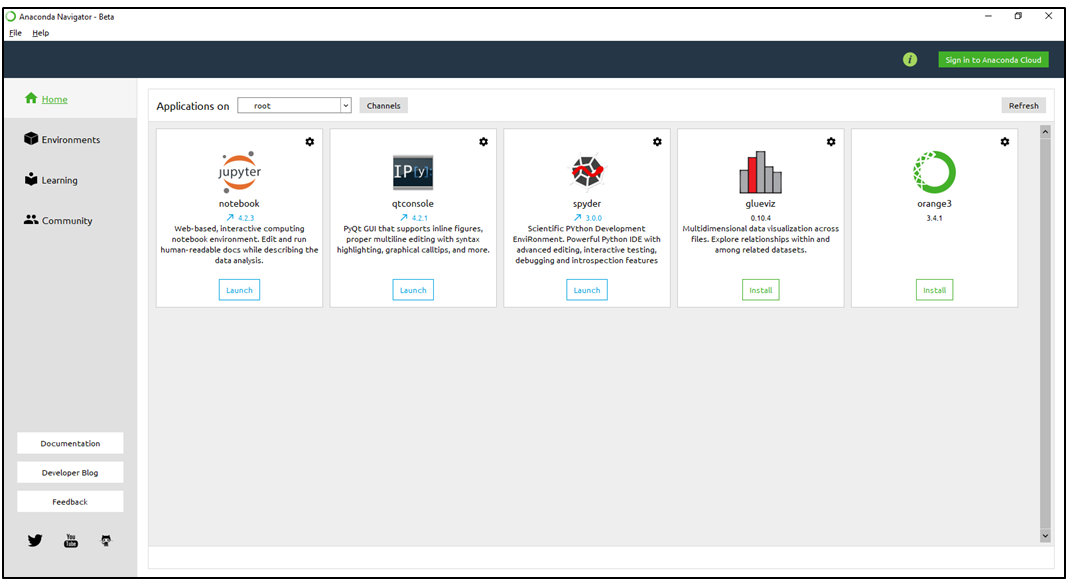
Step 2: After installation go to Anaconda Navigator from start menu which is look like as below screenshot.
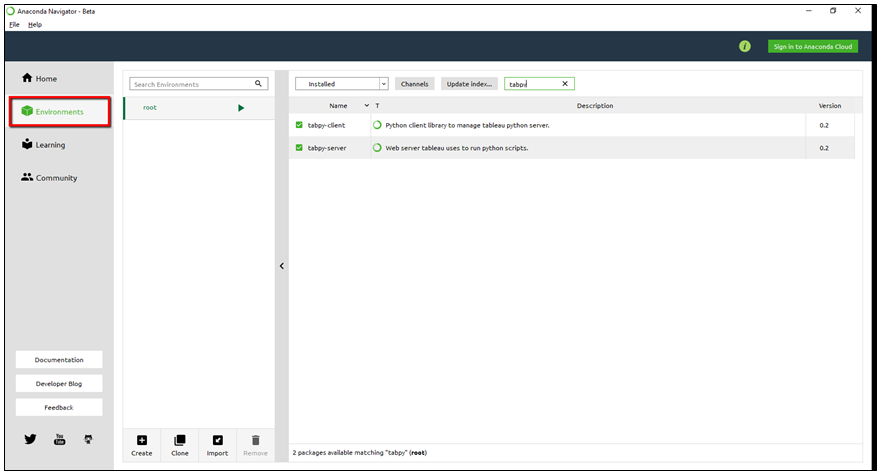
Step 3: Check “Tabpy – Server” and “Tabpy–Client” are installed or not in Anaconda Navigator? If not then click on environments which is on top left side. Please see below screenshot.
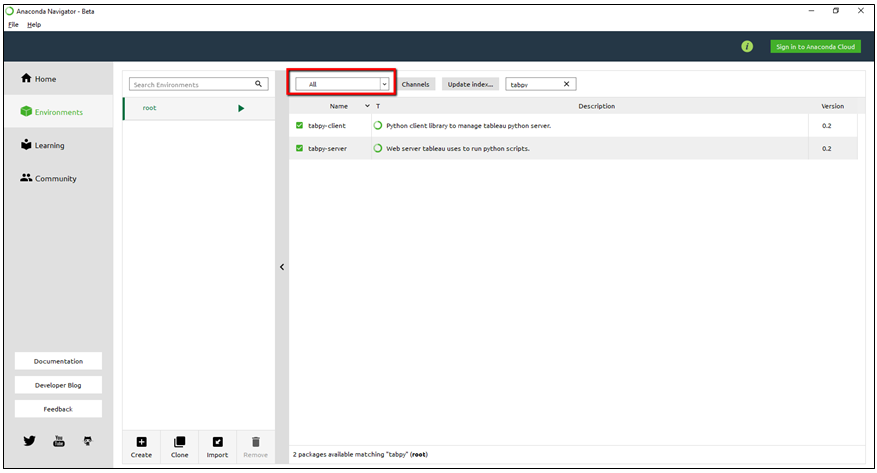
Step 4 : After installation library(Tabpy – Server and Tabpy–Client) will come under “ALL” Dropdown , in Anaconda Navigator window. Please look below screenshot.
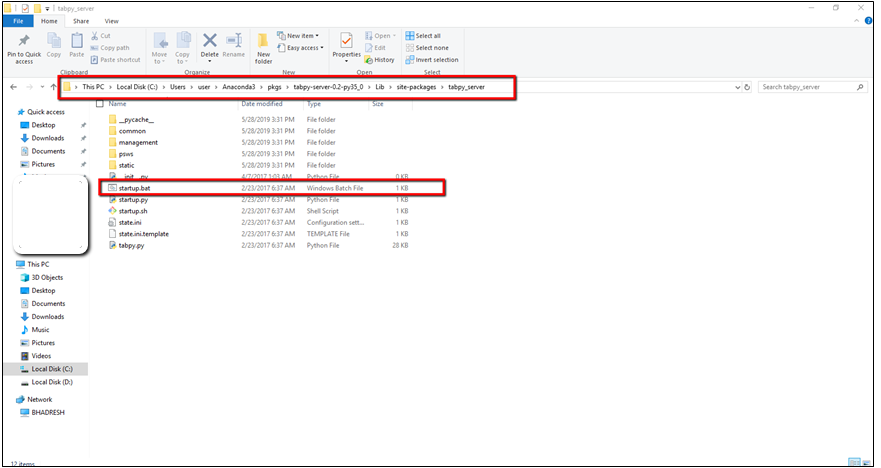
Step 5: Once step 4 is done then please go to respective path as per Anaconda installation and you can see Startup.bat file. Have a look below screenshot for reference.
Step 6 : Then go to command prompt for above screenshot url and run/execute “startup.bat” file , Command window should return output as per below screenshot.
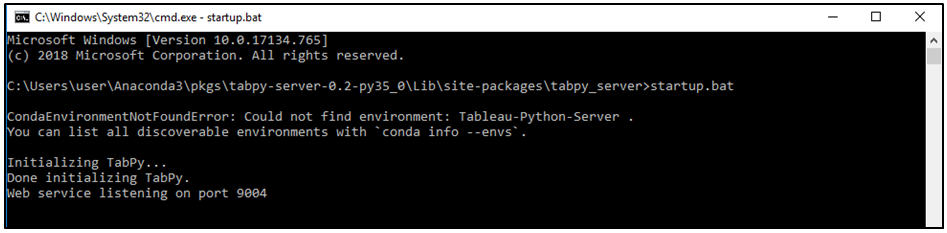
Step 7: Now go to Tableau Desktop to check integration between Tableau and Python.
- Go to Help menu and click on below screenshot step
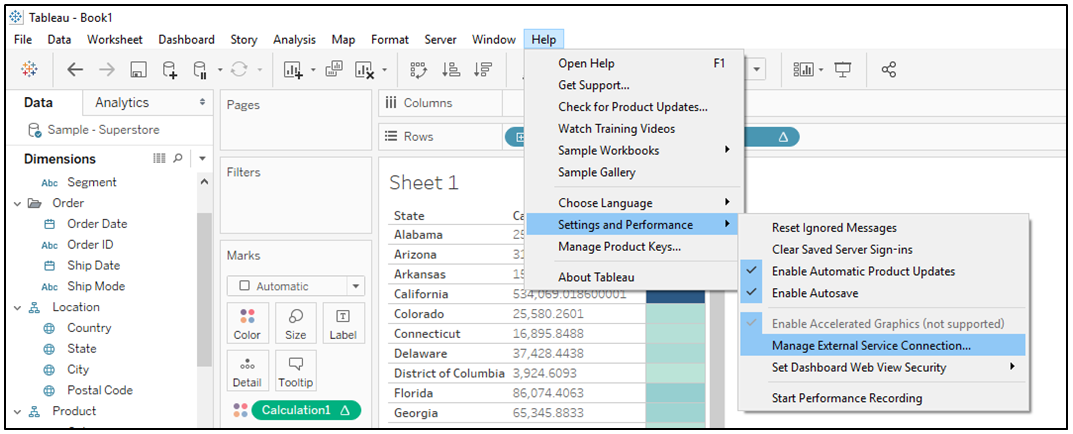
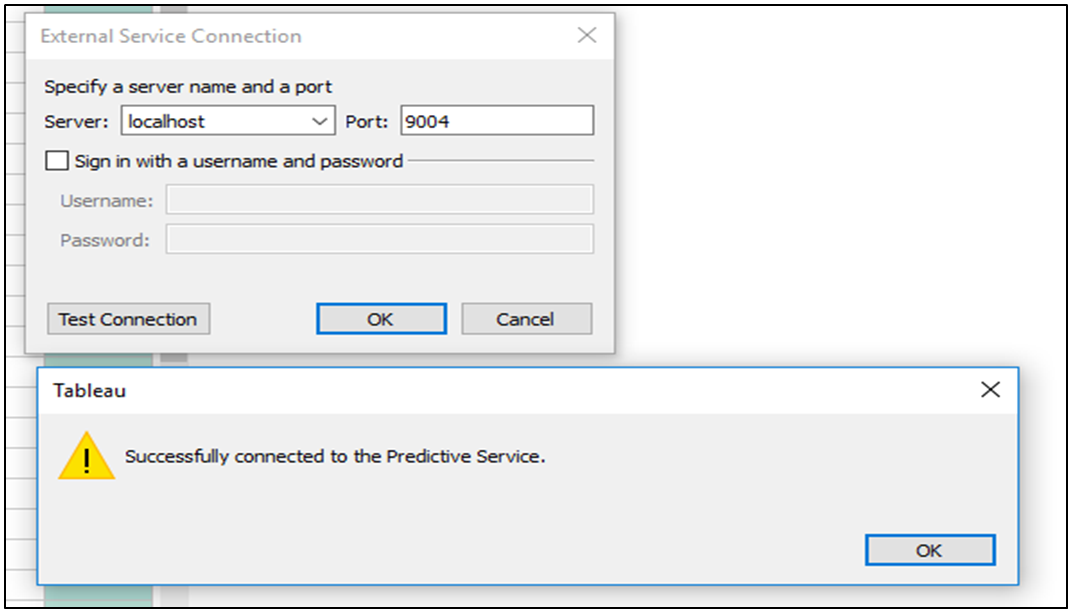
- After Click on “Manage External Service connection..” then below window will open and Click on “Test Connection” button to verify integration between Tableau and Python. Once your integration successful done then below screenshot information will show.
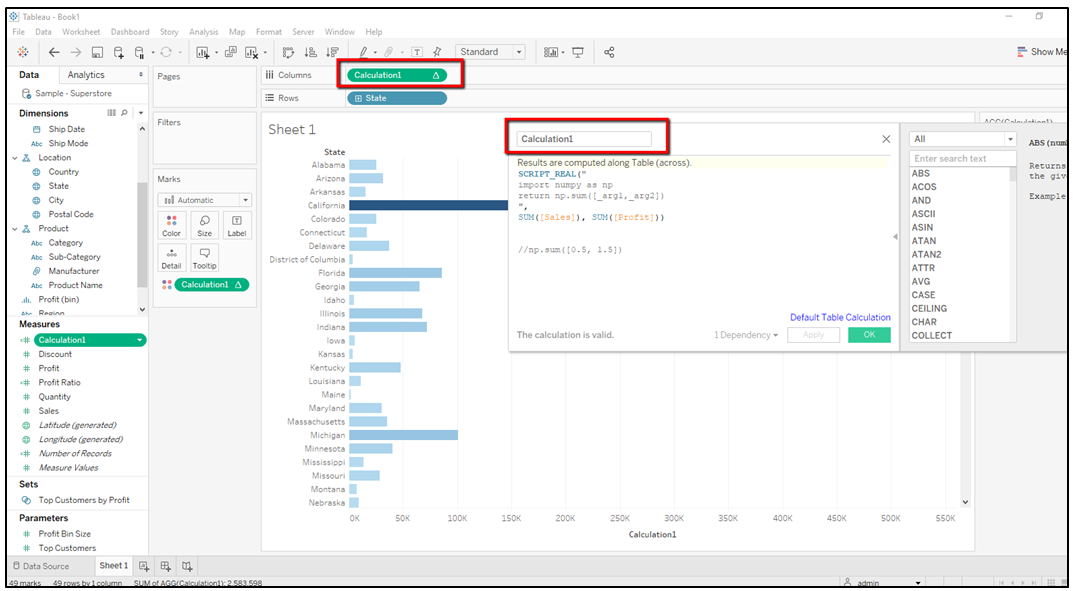
Step 8: Now create simple calculation as per below code for Test, Create Calculation Field in tableau and do check.
SCRIPT_REAL(” import numpy as np return np.sum([_arg1,_arg2]) “, SUM([Sales]), SUM([Profit]))
 Business intelligence